
Connect the board and test the mouse
For MAKCU with Medius, connect USB1 to the gaming PC, USB2 to the second PC running the application, and USB3 to the mouse or its USB receiver. Both computer connections require data-capable cables. Do not connect USB1 and USB3 to the same computer.
Move the mouse on the gaming PC and make sure the application on the second PC detects the board. If the cursor does not move, start with the MAKCU connection diagram.
Choose a connection method
How to select a screen in your TopMacro account
The browser on the gaming PC detects the weapon in the selected window. Its name appears in the TopMacro application on the second computer.
Select the source in the application on the second PC
Sign in to the TopMacro application with an account that has an active subscription. Select a game that supports automatic detection. In the input settings, select MAKCU 2 PC, then choose “In the Topmacro account” in the screen settings and enable weapon detection.
Expected resultThe application is ready to receive detection results for the selected game.
Open the screen selector on the gaming PC
Launch the game and leave it at the menu. In Chrome or Edge, open your account using the button below and sign in to the same account. In Automatic weapon detection, click Select screen.
Open automatic detection in your TopMacro account ↗
Expected resultThe browser asks you to select a window, tab, or entire screen.
Allow the game to be shared and return to it
Select the game window and confirm sharing. If the window is not listed, switch the game to borderless windowed mode or select the monitor displaying it. Leave the account tab open.
Switch weapons in training mode and check the second PC. To end the session, use the browser button to stop sharing.
Expected resultThe weapon name in the application updates when you switch weapons. This method does not require a pairing code.
All steps are checked off. If your result differs from the description, see the troubleshooting section below.
How to send video through an HDMI capture card
In this setup, the gaming monitor stays connected directly to the graphics card. A second video output sends the same picture to the capture card.
Connect the video output and USB
Leave the gaming monitor cable connected. Run a cable from an available, compatible graphics card output to HDMI IN on the capture card. HDMI OUT is unused in this setup.
Connect the capture card USB cable to the second PC. Use a data cable and a port with the speed required by your card.
Expected resultThe gaming monitor still displays the desktop, and a video capture device appears on the second PC.
Duplicate the gaming monitor to the capture card
On the gaming PC, open Windows Settings → System → Display. Click Identify, locate the gaming monitor and capture card, then select Duplicate these displays for that pair. After applying the change, check the gaming monitor resolution and refresh rate.
With an NVIDIA graphics card, you can configure the same pair under Set up multiple displays.
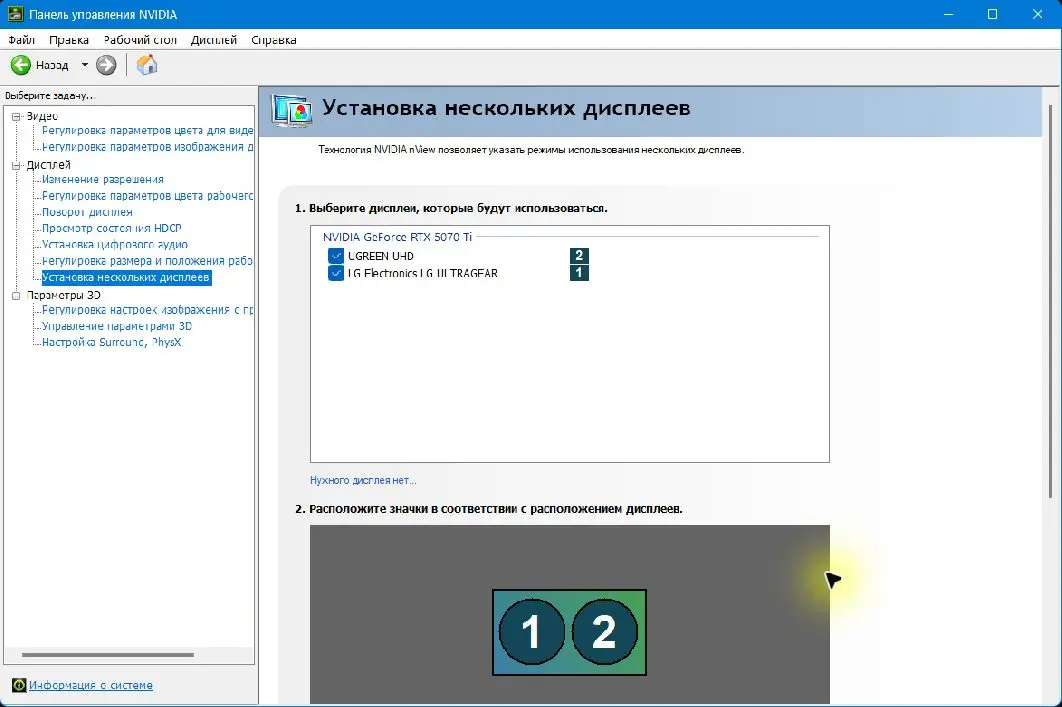
Expected resultThe card receives a copy of the gaming screen. If it shows an empty desktop, check the duplication mode.
Select the card in TopMacro on the second PC
Open your game in the TopMacro application, select MAKCU 2 PC mode, and find Capture source. Refresh the list using the button beside the field and select the card by its model name. If OBS or another program is currently displaying the card feed, close its preview and, if necessary, the application itself.
Expected resultThe selected source is the USB card receiving the signal from the gaming PC.
Check the received frame resolution
Select a supported mode in the card settings. Check Project resolution: if automatic selection is unavailable or incorrect, specify the frame size the card outputs over USB. For example, a gaming monitor may run at 2560 × 1440 while the card sends 1920 × 1080. In that case, select 1920 × 1080 in the application.
Enable automatic detection and switch weapons in training mode.
Expected resultThe application detects weapon changes at the selected capture card resolution.
All steps are checked off. If your result differs from the description, see the troubleshooting section below.
How to view the gaming monitor through Parsec
For this method, install the Parsec desktop application on both computers. The gaming PC sends the image, and the second PC displays it on its monitor.
Allow connections to the gaming PC
In Parsec on the gaming PC, open Settings → Host and turn on Hosting Enabled. If multiple monitors are connected, select the display running the game. When connecting to your own PC, choose Keep Host Resolution so that connecting from a laptop does not change the game resolution.
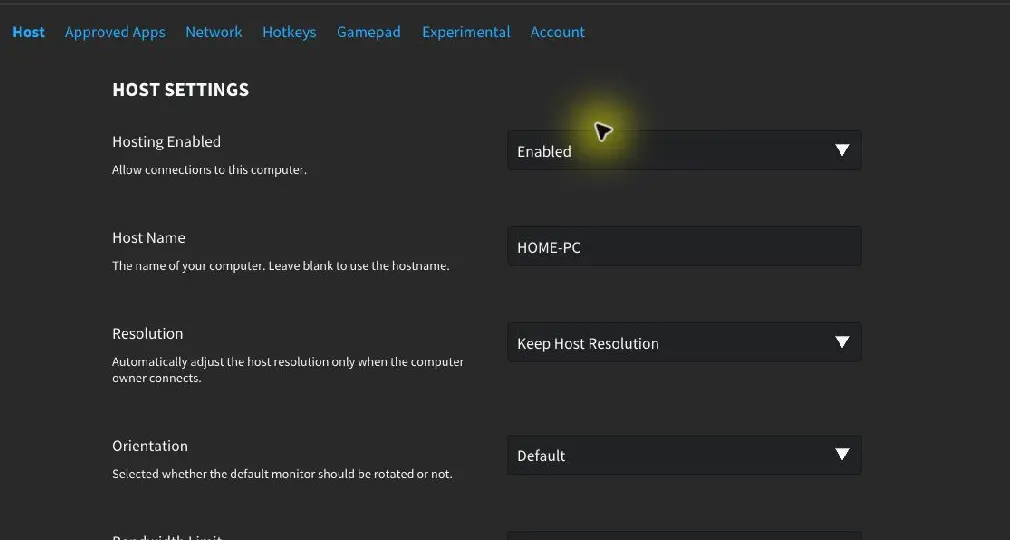
Expected resultThe gaming computer is available to connect to from your Parsec account.
Display the stream full-screen on the second monitor
On the second PC, sign in to the same Parsec account as on the gaming PC. Open Computers and click Connect beside the gaming computer.
If the second PC uses another account, click Share on the gaming PC. Send the link to your second device, paste it into the connection field at the bottom of the Parsec window, and approve the request on the gaming PC. You can disable mouse, keyboard, and gamepad control for the guest.
On the second PC, switch Parsec to full screen and close its settings panel. Open the game menu and make sure you can see it on both screens.
Expected resultAll four edges of the game are visible on the second PC, and Parsec panels do not cover the interface.
Select the monitor displaying Parsec in the application
Open TopMacro settings on the second PC. In MAKCU 2 PC mode, select the monitor displaying Parsec and enter its resolution. Enable automatic detection and bring the stream back to the foreground.
Expected resultTopMacro receives the image from the Parsec screen and detects weapon changes in the game.
All steps are checked off. If your result differs from the description, see the troubleshooting section below.
How to share the game window through Discord
Prepare two Discord accounts and a private voice channel accessible to both. Start sharing from the gaming PC and join as a viewer from the second PC.
Start sharing on the gaming PC
Launch the game, then join the voice channel in the Discord desktop application. Click the Share Your Screen icon, open the applications list, and select the game window. Check that the preview shows the game menu, then click Go Live.
If screen sharing is unavailable, check the Video permission for your account in that channel.
Expected resultA live-stream indicator appears beside the broadcaster’s name in the channel.
Open the stream from the second account
On the second PC, join the same channel using the other account. Click Watch Stream, select the game video, and open it full-screen. Hide the member list and chat, then move the pointer away from the player controls.
Expected resultThe entire game menu fills the viewing screen. Small icons are clearly visible.
Set the source and check image clarity
In TopMacro on the second PC, select MAKCU 2 PC and the monitor displaying Discord. Enter its resolution, enable automatic detection, and return the stream to full screen.
If movement is visible but labels and icons are blurred, open the stream settings on the gaming PC and increase the resolution if that option is available. Enlarging a small stream on a larger monitor does not add detail.
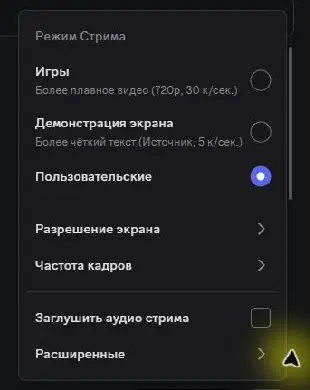
Expected resultAfter you switch weapons in training mode, the weapon name updates on the second PC.
All steps are checked off. If your result differs from the description, see the troubleshooting section below.
How to test detection in the game
Open training mode, pick up one weapon, and check the name shown in the application. Switch to another and wait for the new name. In PUBG, to test attachment detection, open the inventory for a few seconds after changing an attachment.
Test a normal mouse click and the weapon name update separately. If only the picture changes, check the source settings. If the weapon is detected but mouse input is lost, open the board connection troubleshooting guide.
Troubleshooting
The account page shows the game, but the application still shows the previous weapon
Check the account and selected game on both PCs. Make sure the browser is still sharing the correct window. If you closed the window or restarted the game, click Select screen again in your account.
The card shows a black screen or an empty desktop
For a black screen, check HDMI IN, the USB connection to the receiving PC, and whether the card supports the signal mode. An empty desktop usually means Windows extended the display. Select duplication for the gaming monitor and capture card pair.
Parsec or Discord shows the game, but TopMacro sees the desktop
Check which monitor on the second PC is selected in TopMacro. Move the stream to that monitor, make it full-screen, and remove windows covering it. If the stream is frozen in the player itself, restore the stream first.
The Parsec image is delayed
Open the Parsec stream statistics. A high Encode value relates to processing on the gaming PC, Network shows network latency, and Decode is the decoding time on the second computer. These readings help you decide where to start checking.
Do I need a second computer for an AMC or Lua file?
A compatible mouse editor is sufficient to install this type of file. A two-PC setup is used with a board and an application that needs data from the gaming screen.
Cannot find your issue? Contact support: include your mouse model, the program name, and the step where you got stuck. Attach a screenshot of the error, but do not post your purchase key.