Games / Rainbow Six Siege

Rainbow Six Siege macros for your weapon and ADS settings

Rainbow Six Siege options include adjustable macros and files prepared for specific weapons and settings. Start with one familiar loadout. Record your sight, attachments and sensitivity so you can compare them with the chosen macro requirements.

Browse the shop

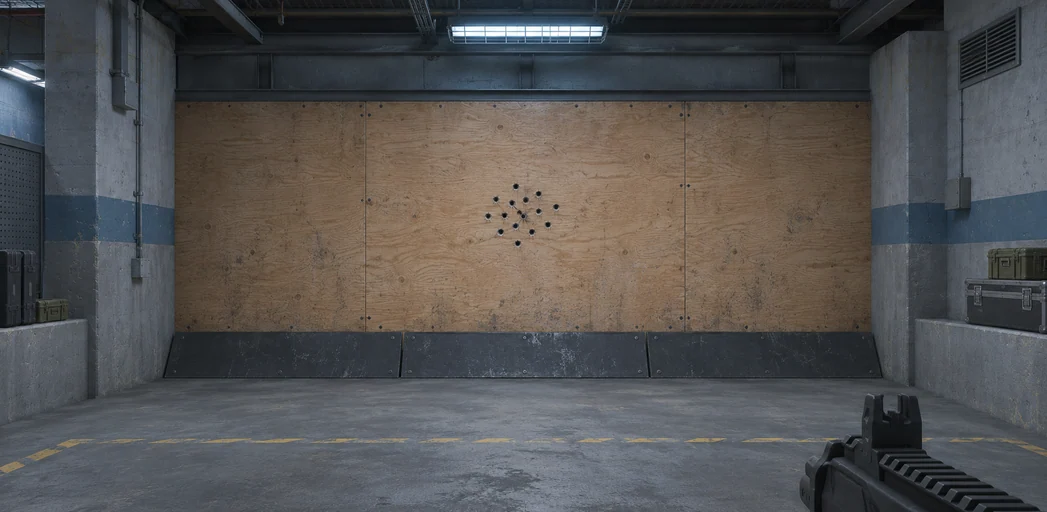
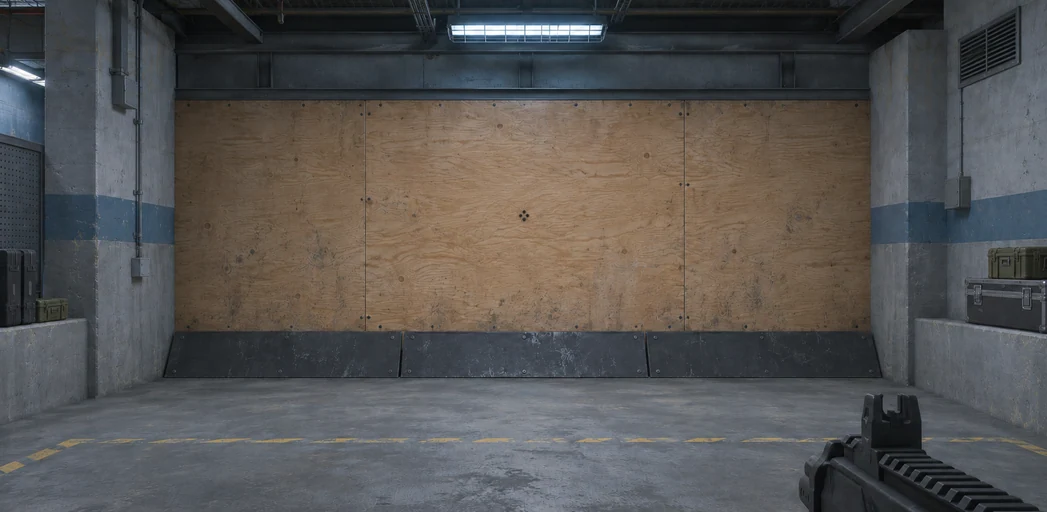
Rainbow Six Siege before and after

Rainbow Six Siege illustration: without recoil compensation, hits spread across the wall.
Before — without a macro
Rainbow Six Siege illustration: with recoil compensation, hits form a compact group.
After — with a macro

About the game

Rainbow Six Siege pits attackers against defenders in five-on-five rounds. Before an assault, drones help scout rooms while defenders reinforce approaches and use cameras. Every operator has different equipment, so the line-up shapes the team’s plan.

Walls and floors are part of the fight too. A breached partition can reveal a room, and an opening in the floor creates an angle from another storey. Even a familiar corridor needs another check if the opponents have had time to change the environment.

What you need to use macros

First, choose the mouse you need a macro for.

Rainbow Six Siege options

When ordering, specify the weapon, attachments, sight and ADS values. With Advanced settings, include sensitivity for the magnification you use.

Macro suitability
Editorial rating by mouse type and launch conditions.

G HUB

A Logitech macro is a Lua script (.lua). Select the correct profile in G HUB, click Create a new Lua script and load the file.

Bloody 7 and WorkShop 8

For an .amc file, follow the guide for your mouse software. If you received an .mgn file, open the section for that format in the Bloody 7 guide.

A custom order is available for this option. On the order page, select your mouse and specify the weapon and sensitivity.

Oscar Editor

Open the .amc file in the Oscar Editor for your X7 model. Assign the macro to a button and save the settings using Download to Mouse.

A custom order is available for this option. On the order page, select your mouse and specify the weapon and sensitivity.

Razer Synapse

Compare your Synapse version with the macro description. Add the .xml file through the Macro module, then assign it to a button and choose a playback mode.

A custom order is available for this option. On the order page, select your mouse and specify the weapon and sensitivity.

Windows application

This game is not yet available in the application for all mice.

Supported games

  • Rust
  • Counter-Strike 2
  • PUBG (PC)
  • Apex Legends
  • THE FINALS

Why choose us

Macros for your in-game settings

Choose a ready-made macro for your usual sensitivity, or a pack where adjustment is included in the price. With a suitable option, you can keep your game settings without placing a separate custom order.

Support

If you have trouble with a purchased macro, contact the seller through your order conversation on Oplata.info. We can help you find where to import the file and what to check if the result differs from what you expected.

Quality

We match macro movements to the weapon and game settings to reduce the manual correction needed during a burst. Compensation uses mouse input without injecting into the game process. Random spread remains.

Android and MAKCU

Macros run in our Android app, while a MAKCU board sends commands to the gaming PC. You need the board and a compatible phone or tablet with USB OTG. Supported games are listed in the application description.

Guarantee and updates

If the product you receive does not match its description, we will review your case and offer a solution under the shop terms. When a macro version is released for changed recoil, it is available free of charge if those updates are included in your purchase terms.

Reviews from buyers

Reviews are left by customers who placed an order through Digiseller. If you have trouble with a macro, write in your order conversation on Oplata.info. The order number and a description of the problem help us investigate faster.

Sights and attachments in Rainbow Six Siege

Use one weapon and fire several bursts with the same attachments and sight. When testing another optic, repeat the series at the same distance.

Testing a macro with your weapon

If your aim consistently rises or drops, compare the sight, attachments and sensitivity with the instructions. Then check whether compensation strength can be adjusted.

Details you will need

Prepare the weapon name, optic, attachments and sensitivity. Match the supported editor to your mouse model, and the activation method to your usual controls.

Macros and third-party tools in Rainbow Six Siege

Activation with two buttons

The LMB + RMB version runs a defined sequence while both buttons are held together. How the aim responds depends on in-game sensitivity and the ADS value for the selected magnification.

Information about the next room

A wallhack can reveal a defender’s position behind a partition. This tells the player where to look when entering a site before the defender is visible.

Macro options
Adjustable or prepared for your settings.
Starting information
Weapon, optic, attachments and sensitivity.
Controls
Check how to select a weapon and enable the macro.

Adjustable macros and custom orders

A universal Lua script may store several profiles and let you adjust vertical and horizontal movement separately. In that case, select a saved setup, then adjust the available settings with your mouse buttons.

When ordering a macro, specify your weapon, sight, attachments and in-game sensitivity. For Bloody and X7, you can choose the activation mode. LMB starts compensation while you hold the left mouse button; LMB + RMB works only while both buttons are held together. Check the contents of the current offer: a large pack mentioned in a general description does not confirm that every version is on sale.

What would you like to set up?

Start with one loadout

Use a familiar weapon and save its settings. One reproducible loadout is more useful for an initial comparison than several at once.

What to include when describing your loadout

Information for choosing a Siege macro
What to provideHow to avoid ambiguity
WeaponThe full name; the operator name is not a substitute.
Sight and attachmentsA list of installed attachments or a loadout screenshot.
SensitivityGeneral values and the settings for your aiming mode.
Mouse and editorThe exact model and software version, not just the brand.
ButtonsYour preferred activation, stopping and profile-switching controls.

If you already have a file, include its name and the symptom you observe. “Pulls down immediately” and “drifts after several shots” point to different checks. Do not send your Ubisoft password: it is not needed to choose a macro.

Precise Siege settings

Why “sensitivity 50” is not enough

Separate horizontal sensitivity, vertical sensitivity and ADS. An unlabelled number does not explain which setting it refers to. Ubisoft’s ADS system explanation distinguishes Standard, with a shared value, from Advanced, with individual magnification settings.

What to record for a custom setup

Provide horizontal and vertical sensitivity, FOV, ADS mode and the values for the optics you use. For example: “ADS: Advanced; my values for each magnification follow.” Do not copy someone else’s example values.

If a macro works as intended with one sight but drifts with another, compare the corresponding ADS fields first. One matching general value does not make the configurations identical.

How to compare two settings

Save the starting values and change one at a time. For example, when testing vertical compensation, leave horizontal movement and delays unchanged. Naming saved setups after the weapon and sight makes them easier to identify.

Repeat several identical bursts for comparison. One successful hit does not prove every setting is correct. A prerecorded sequence does not choose a target or eliminate random elements of firing.

Have you gathered the setup details?

Checked 0 of 5

Frequently asked questions

Do several Lua profiles cover the entire arsenal?

No. This is the number of saved setups. The available sequences and how to configure them depend on the specific offer.

Why is a vertical adjustment alone not enough?

A vertical adjustment changes movement on one axis. Horizontal movement and timing are configured separately, if the file supports those adjustments.

How do I adapt a setup to another sight?

Check whether the pack includes a version for the new optic. If the file needs adjusting, send screenshots of Siege horizontal and vertical sensitivity and ADS settings to the seller through your order conversation on Oplata.info. With Advanced ADS, include the value for the magnification you intend to use.

Search Recoilab

All pages: 56

↑