Games / Call of Duty: Warzone

Warzone macros for your attachments and sensitivity

Choose a Warzone macro for your weapon, attachments and sight. Also check which game version it was prepared for. If aim movement changes after replacing an attachment, compare the result with the previous loadout first.

Browse the shop

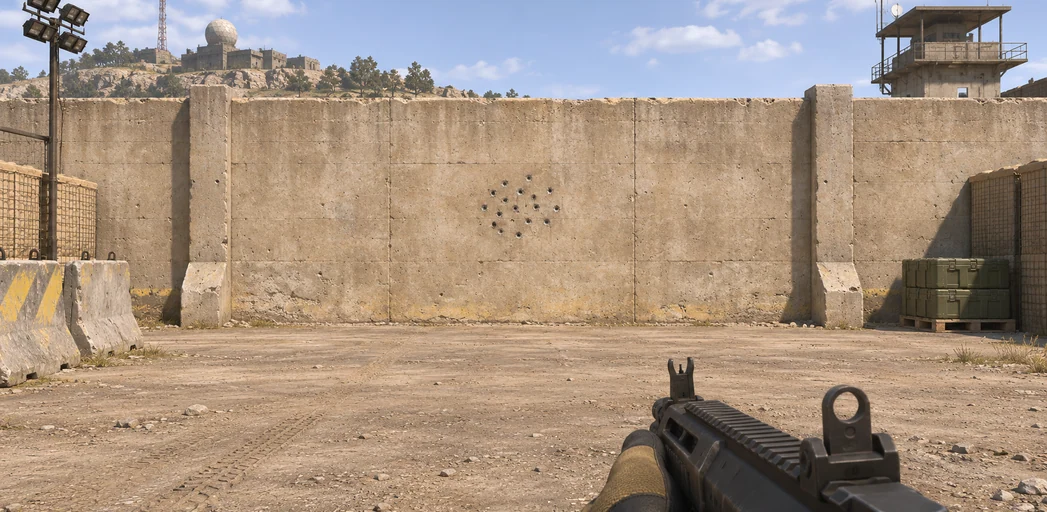
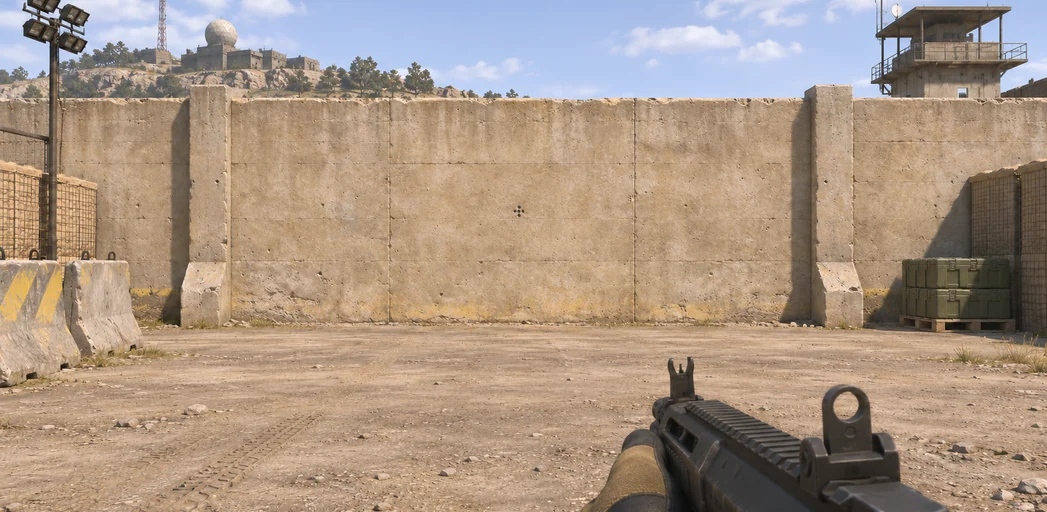
Warzone before and after

Warzone illustration: without recoil compensation, hits spread across the wall.
Before — without a macro
Warzone illustration: with recoil compensation, hits form a compact group.
After — with a macro

About the game

In Call of Duty: Warzone, you can start with weapons found after landing and later obtain your own loadout. Contracts give the squad objectives during the match. On the way, you decide where to restock and how to reach the next circle.

In standard battle royale, the Gulag offers a chance to return after elimination. In Resurgence, eliminated players can return while a teammate remains alive and the respawn timer is still active. A successful attack matters, but so does retreating when it keeps the squad in the match.

What you need to use macros

First, choose the mouse you need a macro for.

Macros for your Warzone loadout

Account for attachments and ADS settings. For a custom order, specify your mouse model on the product page along with loadout details.

Macro suitability
Editorial rating by mouse type and launch conditions.

G HUB

A Logitech macro is a Lua script (.lua). Select the correct profile in G HUB, click Create a new Lua script and load the file.

Bloody 7 and WorkShop 8

For an .amc file, follow the guide for your mouse software. If you received an .mgn file, open the section for that format in the Bloody 7 guide.

A custom order is available for this option. On the order page, select your mouse and specify the weapon and sensitivity.

Oscar Editor

Open the .amc file in the Oscar Editor for your X7 model. Assign the macro to a button and save the settings using Download to Mouse.

A custom order is available for this option. On the order page, select your mouse and specify the weapon and sensitivity.

Razer Synapse

Compare your Synapse version with the macro description. Add the .xml file through the Macro module, then assign it to a button and choose a playback mode.

Select Razer in the Mouse model field on the order page.

Windows application

This game is not yet available in the application for all mice.

Supported games

  • Rust
  • Counter-Strike 2
  • PUBG (PC)
  • Apex Legends
  • THE FINALS

Why choose us

Macros for your in-game settings

Choose a ready-made macro for your usual sensitivity, or a pack where adjustment is included in the price. With a suitable option, you can keep your game settings without placing a separate custom order.

Support

If you have trouble with a purchased macro, contact the seller through your order conversation on Oplata.info. We can help you find where to import the file and what to check if the result differs from what you expected.

Quality

We match macro movements to the weapon and game settings to reduce the manual correction needed during a burst. Compensation uses mouse input without injecting into the game process. Random spread remains.

Android and MAKCU

Macros run in our Android app, while a MAKCU board sends commands to the gaming PC. You need the board and a compatible phone or tablet with USB OTG. Supported games are listed in the application description.

Guarantee and updates

If the product you receive does not match its description, we will review your case and offer a solution under the shop terms. When a macro version is released for changed recoil, it is available free of charge if those updates are included in your purchase terms.

Reviews from buyers

Reviews are left by customers who placed an order through Digiseller. If you have trouble with a macro, write in your order conversation on Oplata.info. The order number and a description of the problem help us investigate faster.

What affects firing in Warzone

Two builds of the same weapon can feel different, especially after a sight or attachment change. Record the attachments and settings so you can repeat the test with the same loadout.

Adjusting macro strength

Check whether compensation strength can be changed for your loadout. When switching weapons, consult the description: a different weapon may need a macro with different timing and movement.

What to confirm before starting

Check the Warzone version, mouse and software. After importing, test the activation button and stopping behaviour before comparing bursts.

Recoil correction and cheats in Warzone

A file for a specific loadout

A Warzone macro defines mouse movements and intervals within a burst. This input can be prepared for a weapon with specific attachments and ADS sensitivity. Another loadout changes the conditions the file was designed for.

Third-party radar

A radar cheat can show hidden opponent positions and update them during the match. It gives the player information about other squads’ movements, such as a flank.

Basis for your choice
The exact weapon and attachment setup.
Sequence settings
Strength, direction, intervals and activation.
After a change
Compare first, then adjust.

What can you actually adjust?

A simple adjustable macro changes movement strength. Other versions may let you set vertical movement, horizontal movement, delays or activation conditions separately, or save several setups. The file description lists the capabilities of that specific version.

A universal Lua script and a file prepared for a particular weapon approach the task differently. With the first, you use the available adjustments; with the second, you need to reproduce the conditions the sequence was based on.

What did you change?

Choose a macro for the new weapon

A different weapon may have a different recoil pattern and fire rate. Check whether the pack includes it before changing compensation strength.

Save your loadout and working values

Keep a screenshot of the weapon and attachments, your sensitivity values and the file name. If the file has several saved setups, also record the selected one. If the sequence displays current values, note them after adjustment. Counting side-button presses is not a reliable substitute for an exact value.

What to record for a Warzone macro setup
InformationWhy it matters
Weapon and attachmentsReproduce the original loadout.
Optic and ADSAvoid mixing up different aiming modes.
Strength and intervalsRestore settings if they are not saved automatically.
SwitchesDistinguish profile selection from activation and adjustment.

An example with two loadouts

Selecting a macro after changing weapons

Suppose you have one saved setup for your main rifle and another for a close-range weapon. If the script supports several slots, label them by loadout. After changing weapons, check which macro setup is active. Its instructions explain the switching method.

Your aim drifts after changing weapons

Compare three states: the first loadout with the first slot, the second with the second slot, then a return to the first. If the difference appears only during the switch, start with the switching command and current slot. Do not immediately readjust both sequences when they already produced understandable results separately.

Record both sets of values before closing the program. Changing a current value and saving a slot may be separate actions; the script instructions should specify the correct order.

Installing and checking a macro

  1. Open the appropriate formatUse G HUB scripting for Lua. For Bloody, X7 and Razer, choose the guide for the relevant editor.
  2. Check activationWith LMB, compensation starts while you hold the left mouse button. LMB + RMB activates while both buttons are held together. If the macro has a separate enable key, find it in the instructions.
  3. Check stopping behaviourA brief click can start a complete cycle. Behaviour depends on playback mode, not just the length of the press.
  4. Compare repeatable burstsIf the start matches but the continuation does not, check intervals and duration first instead of increasing the entire movement strength.

Detailed installation guides by application →

When compensation settings are not the cause

Check the weapon and attachment requirements manually unless the application explicitly includes automatic detection. Network latency and uneven visuals can also make firing harder to assess. Compensation strength does not fix those problems.

Frequently asked questions

Does universal adjustment suit every loadout without testing?

No. It provides a set of parameters, but does not confirm a match for every weapon and attachment combination.

Why did my chosen strength disappear after restarting?

The value may have applied only to the current session. Check how saving works in your script version.

What is needed for a custom setup?

Take screenshots of your Warzone settings showing mouse sensitivity, the ADS multiplier, FOV and ADS field-of-view mode. Send them to the seller through your order conversation on Oplata.info. Include the pack name, weapon with its sight and attachments, mouse model and software, and the desired macro activation method.

Should I delete the old file after an update?

Keep it separately until you know what caused the change. First check the selected macro and saved game settings.

Search Recoilab

All pages: 56

↑