
Before you start
Prepare G HUB and the Lua file
- Connect your mouse and open Logitech G HUB. The device card should not show Inactive.
- Extract your purchase and find the .lua file. AMC and XML files do not belong in this editor.
- Save your existing assignments and scripts. A separate profile is useful for a new macro so that you do not replace a working one.
Open Profiles and select an application
Click Profiles in the top bar of G HUB. Open the card for the required game, or Desktop if the purchase instructions specify it.
Find the Profiles section on the application page. Select an existing profile without a working script, or click Add Profiles to create a separate one.
Expected resultYou can see the profile card to which you will add Lua.
Open Create LUA Script
Click the three dots on the selected profile card. Choose Create LUA Script. If the item is below the visible part of the menu, scroll within the menu.
In an already configured profile, the command may instead offer to edit the script. Do not replace its contents without a backup. The Add Macros button on this page does not open Lua import.
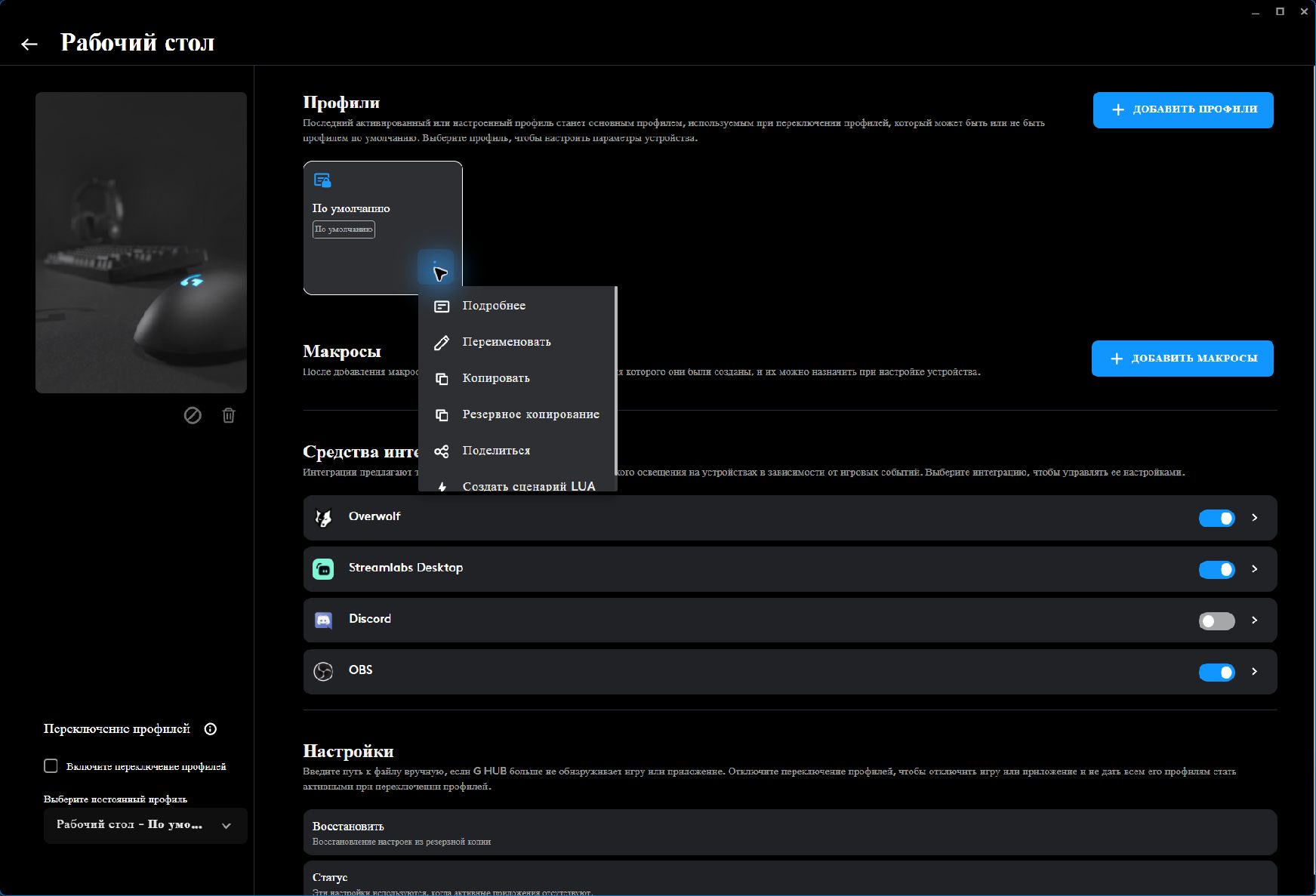
Expected resultThe scripting section for the selected profile is open.
Create a new script
If the list is empty, click Create a New LUA Script at the bottom of the window. The editor opens with a short starter template.
Check the application and profile names in the upper-left corner. The Active LUA Script field shows which script is selected for this profile. The starter template is not your macro yet.
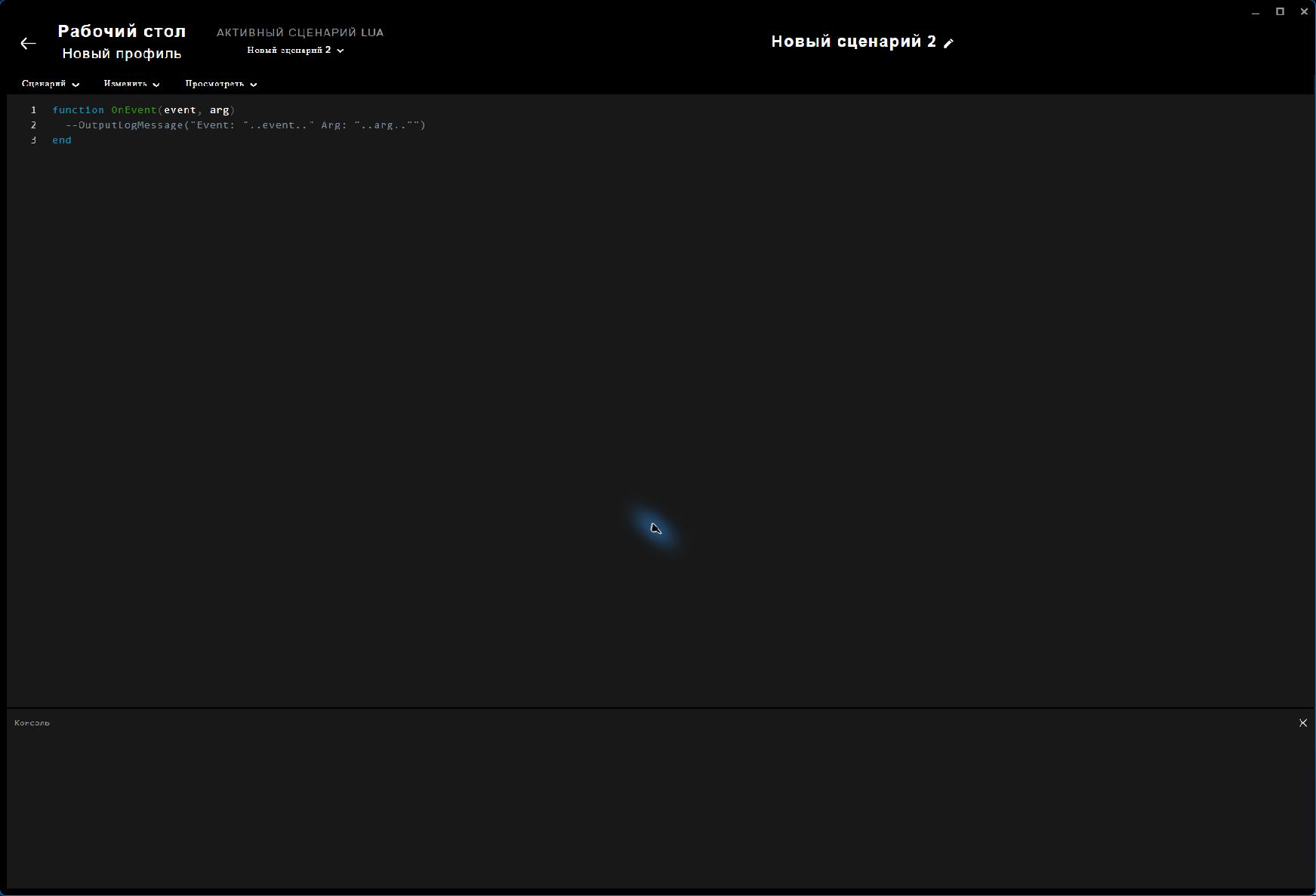
Expected resultYou have a code window with a Script menu, not the standard keystroke recorder.
Import the file through the Script menu
In the upper-left corner, open Script → Import. In the file picker, find the extracted .lua file and open it.
The contents of the editor should change to the code from the file. Do not paste two Lua files one after another: a second macro needs a separate script or a selection mechanism provided by the author within one file.
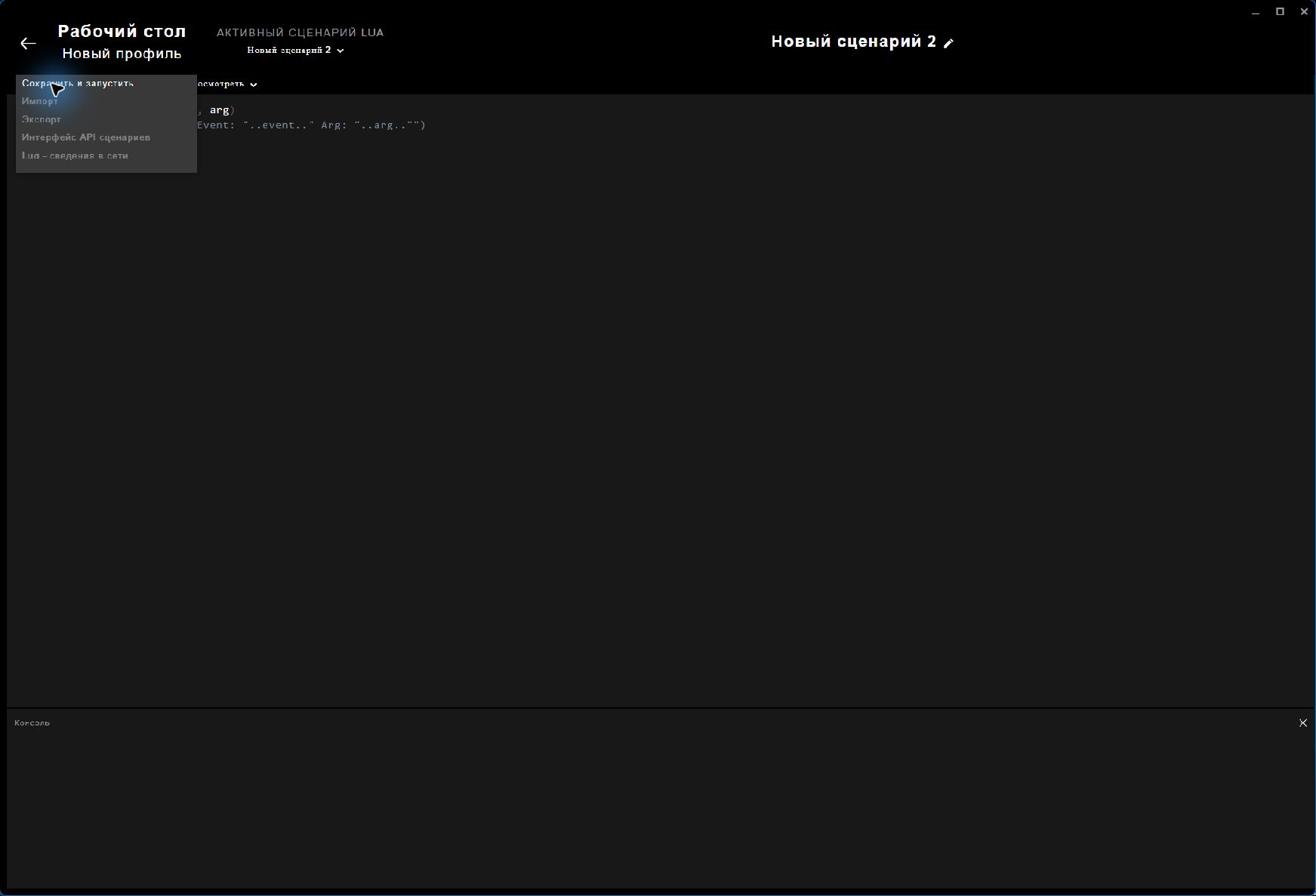
Expected resultThe editor contains the code from your file, not just the three lines of the starter template.
Select Save and Run
Open Script → Save and Run. Look at the console at the bottom of the window.
If an error appears, save its text and line number. If there are no errors, check the active script at the top. Do not add code to Lua by guesswork.
Expected resultThe script is saved and reports no error. Now test it in the game, as described in the next step.
Select the profile and test the controls
Keep G HUB running in software mode, not Onboard Memory mode. Make sure the profile containing the script is active when you open the game.
Find the activation button and execution condition in the purchase instructions. Different combinations may be used: Caps Lock or G5 is not a universal rule for every Lua script.
In training mode, run a short test, then disable the macro. If the description specifies a persistent profile, set it for the test and note your previous selection so you can restore it afterward.
Expected resultThe macro runs in the required profile, starts as specified, and stops correctly.
All steps are checked off. If your result differs from the description, see the troubleshooting section below.
Troubleshooting
The mouse is marked Inactive
Turn it on, check the cable or USB receiver, and wait for it to connect in G HUB. Being able to view the Lua editor does not mean the device is ready to execute the script.
There is no response after saving
Check the active profile, selected script, and toggle specified in the purchase instructions. Do not move Lua into the standard Macros section.
The macro stops working when I open the game
Check whether the profile changed. The script must be attached to the profile actually used in the game.
Import or other commands are unavailable
Make sure you opened an individual script, the editor has loaded, and a supported mouse is connected. If the command remains unavailable, send support a screenshot and your G HUB version instead of manually replacing program settings files.
I need a standard macro without Lua
Open the mouse → Assignments → Macros → Create New Macro. This is a separate keystroke-recording feature; use the steps above to import Lua.
Cannot find your issue? Contact support: include your mouse model, the program name, and the step where you got stuck. Attach a screenshot of the error, but do not post your purchase key.
Screenshots were taken in G HUB 2026.5. Onboard Memory features differ from software mode — Logitech support.