
Before you start
Prepare an XML file for Synapse 4
- Extract the archive and choose a file made specifically for Synapse 4. Synapse 3 and 4 files are not interchangeable.
- Connect a compatible Razer mouse and open Synapse. The mouse should appear on the dashboard.
- Take a screenshot of the previous button assignment. For the first test, use a side button and preserve normal left-click functionality.
Open the Macro tab
Click MACRO at the top of Synapse. The editor opens with the macro list in the upper-left corner.
If the tab is missing, open Devices & Modules and check for the macro module. Install the required module through Synapse first, then return to this guide.
Expected resultYou can see the macro list, command area, and three-dot menu.
Select Import from the three-dot menu
Click … beside the macro dropdown, then Import. The screenshot shows the exact command location in the Russian interface.
Do not select Create Macro or Record: those commands create a new sequence, whereas you need to open an existing file.
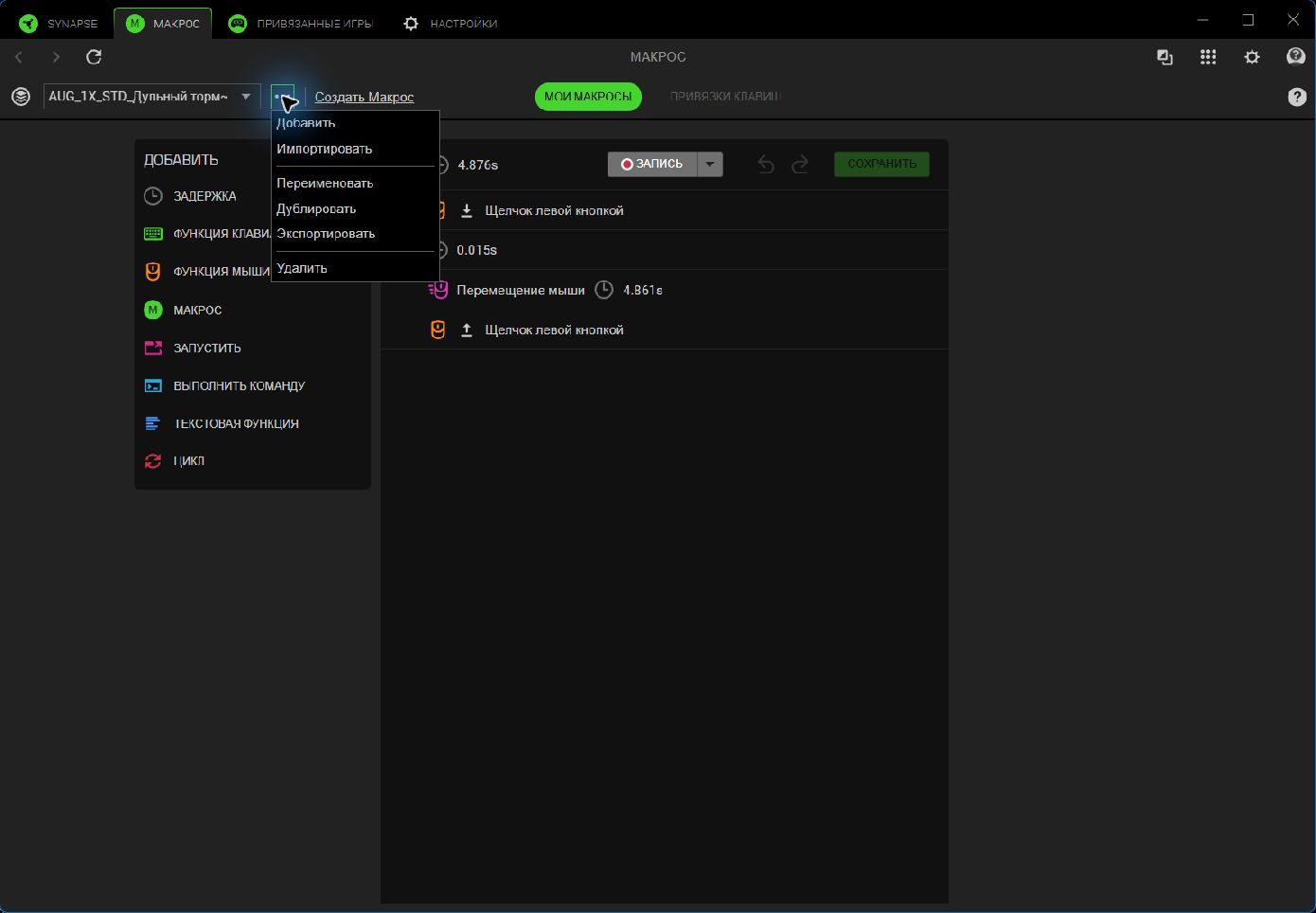
Expected resultA file picker opens on your computer.
Open the XML and check the command list
In the file picker, go to the folder containing your extracted purchase. Select the required .xml and click Open. Then select the added macro in the list.
Its events should appear on the right: presses, delays, and any other included actions. These depend on the file and do not have to match the screenshot. You do not need to rewrite the events manually to install the macro.
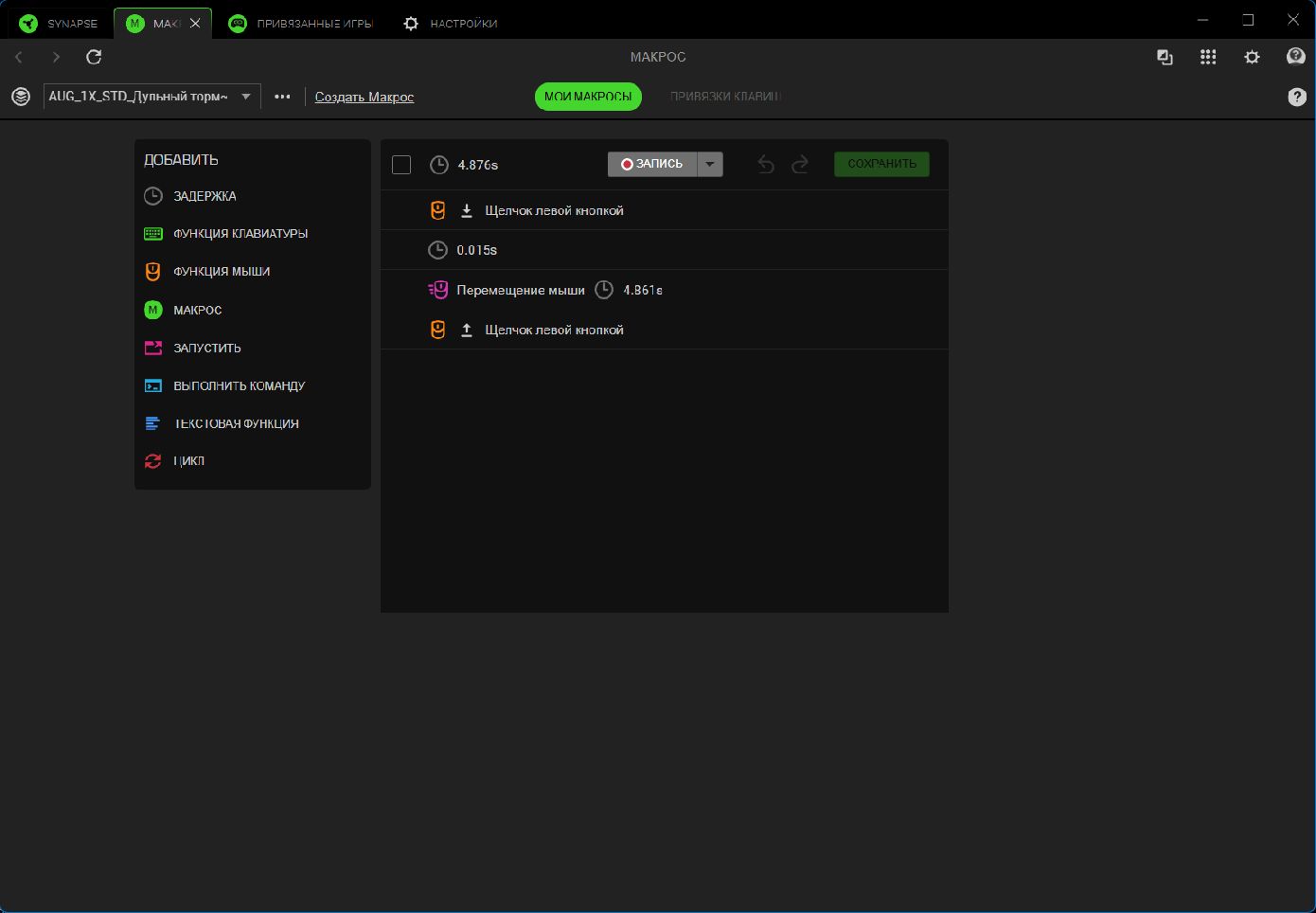
Expected resultThe selected macro appears in the list, and its commands are available to view.
Open your mouse and select a button
Return to SYNAPSE → Dashboard and click the image of your mouse. Open the Customize tab.
In the upper-left corner, select the profile where you will use the macro. Then click the side-button label next to the mouse diagram, such as Mouse Button 4. Its assignment window opens.
The example shows a DeathAdder Essential. Button positions may differ on another model. If the mouse does not appear, check the connection first: you can import an XML into the library without a device, but you cannot assign it to a physical button without one.
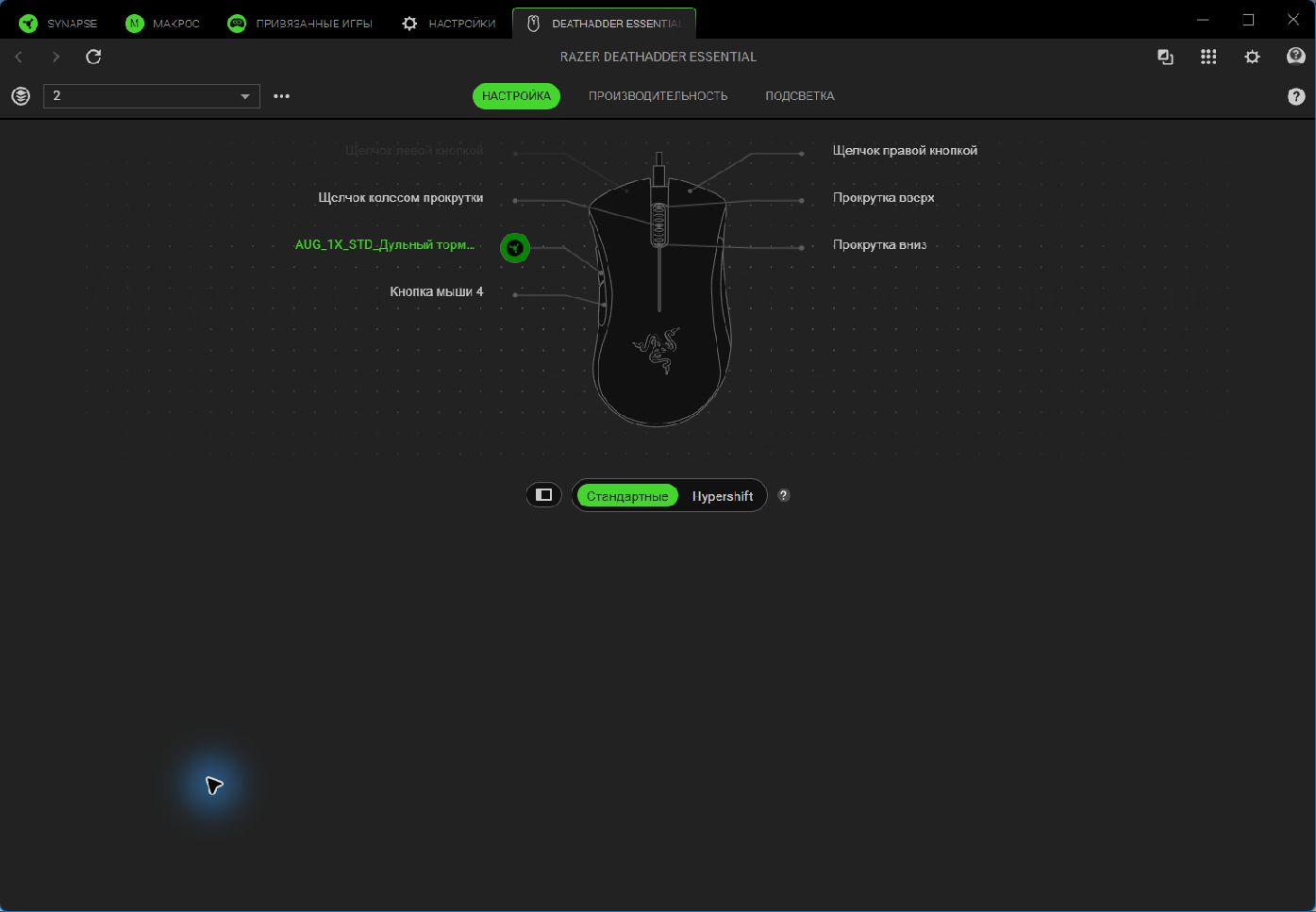
Expected resultThe assignment menu for the required button is open in the selected profile.
Choose the macro and playback mode, then save the assignment
In the window that opens, click the M icon in the left column: this is the Macro action. In the field below the heading, select the name of the added file.
Expand Playback Option and choose the mode specified in your purchase instructions:
- Play Once — one press starts one pass through the event list.
- Play Multiple Times — the sequence repeats a specified number of times.
- Play While Assigned Key Is Pressed — the sequence repeats while you hold the button.
- Toggle Continuous Playback On/Off Using Assigned Key — the first press starts repetition, and the next press stops it.
Do not select a continuous mode unless your file is designed for it. Click the green Save button. The window closes, and the macro name appears beside the selected button on the diagram. Reopen the button settings to check the saved name and mode.
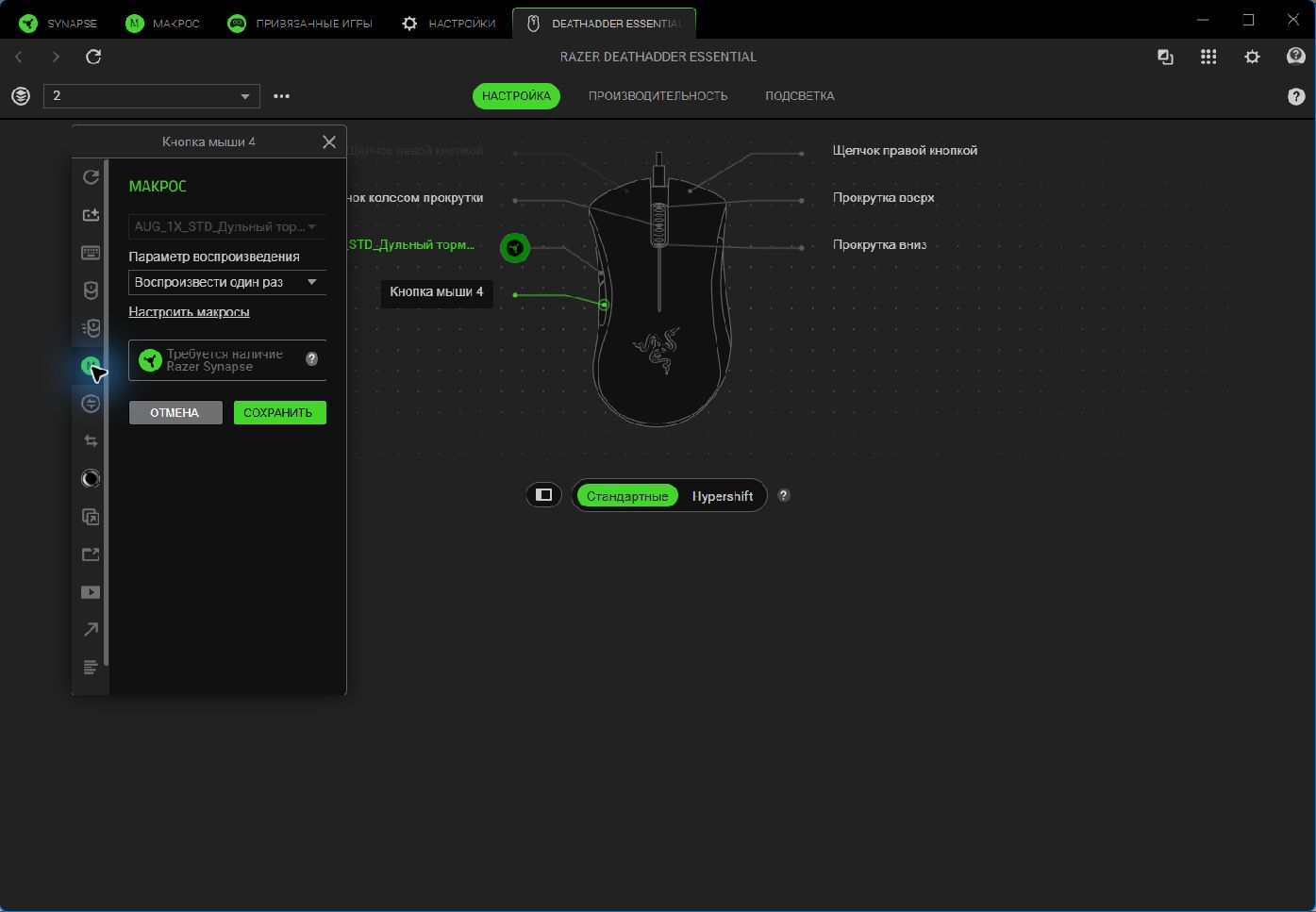
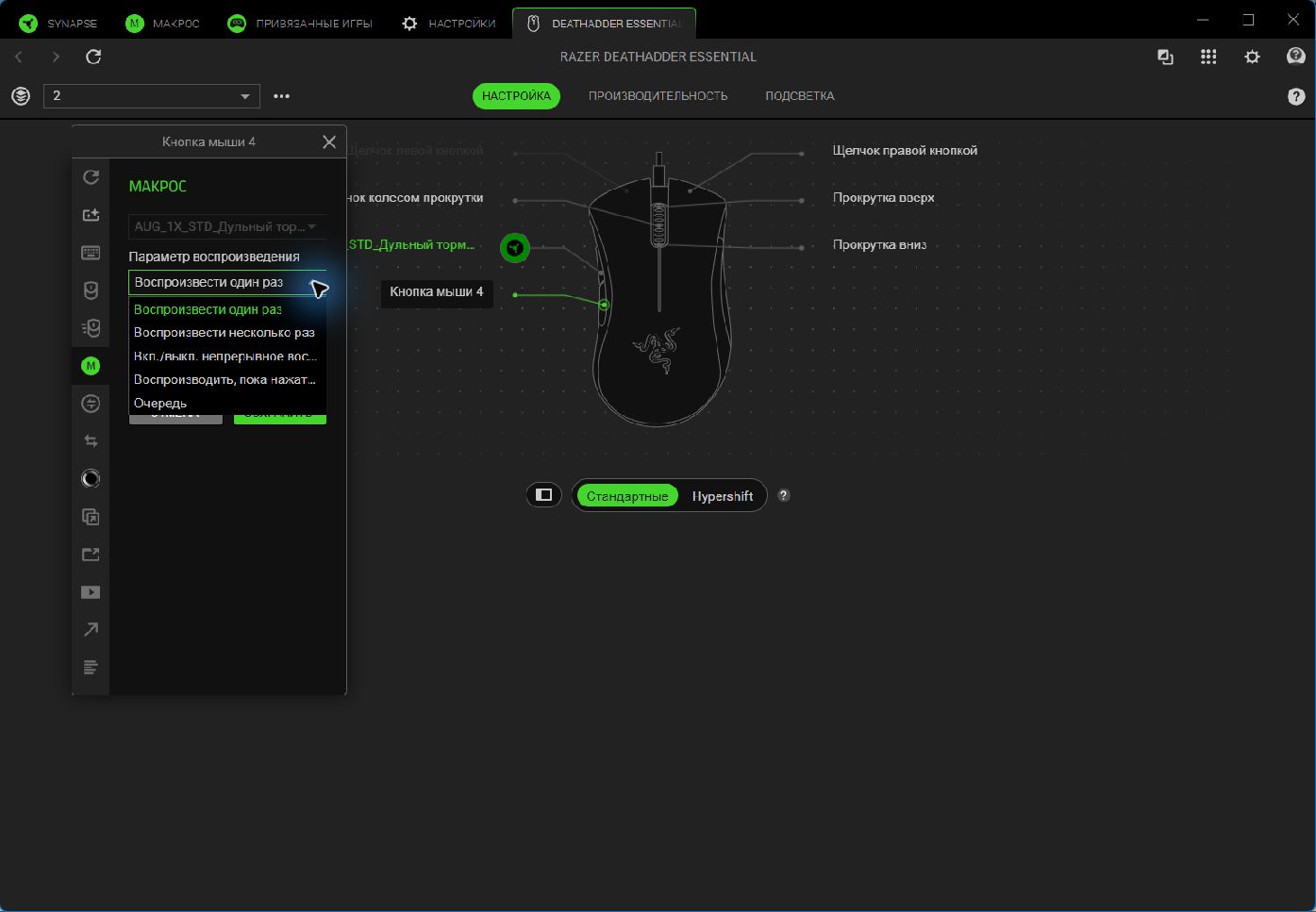
Expected resultThe macro name appears beside the button, and reopening its settings shows the selected name and mode.
Test one activation and stop
Keep Synapse running and select the configured profile. In the game training mode, use the settings specified in the macro description.
Press the assigned button and test one cycle or a short hold. Then stop execution using the specified method. If the action continues, do not change sensitivity; return to the playback mode first.
Expected resultThe button starts the required sequence, you know how to stop it, and normal mouse controls work.
All steps are checked off. If your result differs from the description, see the troubleshooting section below.
Troubleshooting
The XML will not import, or the list stays empty
Check the file version. Razer explicitly states that Synapse 3 and Synapse 4 macros are not interchangeable. Obtain a file for the correct version; renaming the XML will not help.
The macro is visible, but the button does not start it
Check steps 4 and 5 again: the mouse, active profile, selected button, and saved assignment. Adding the file to the library does not assign it automatically.
The dashboard says no device was found
Connect the mouse, turn on the wireless device, and check whether Synapse 4 supports it. Wait for the mouse to appear on the dashboard. Then continue with button assignment in step 4.
The macro repeats for too long
Return to the button settings. Check Play Once, hold, and toggle behavior against the file instructions. For a repeating mode, you need to know how to stop it before testing.
Cannot find your issue? Contact support: include your mouse model, the program name, and the step where you got stuck. Attach a screenshot of the error, but do not post your purchase key.
Import procedure and incompatibility between format versions: official Razer support. The menu locations were also checked in an installed copy of Synapse 4.